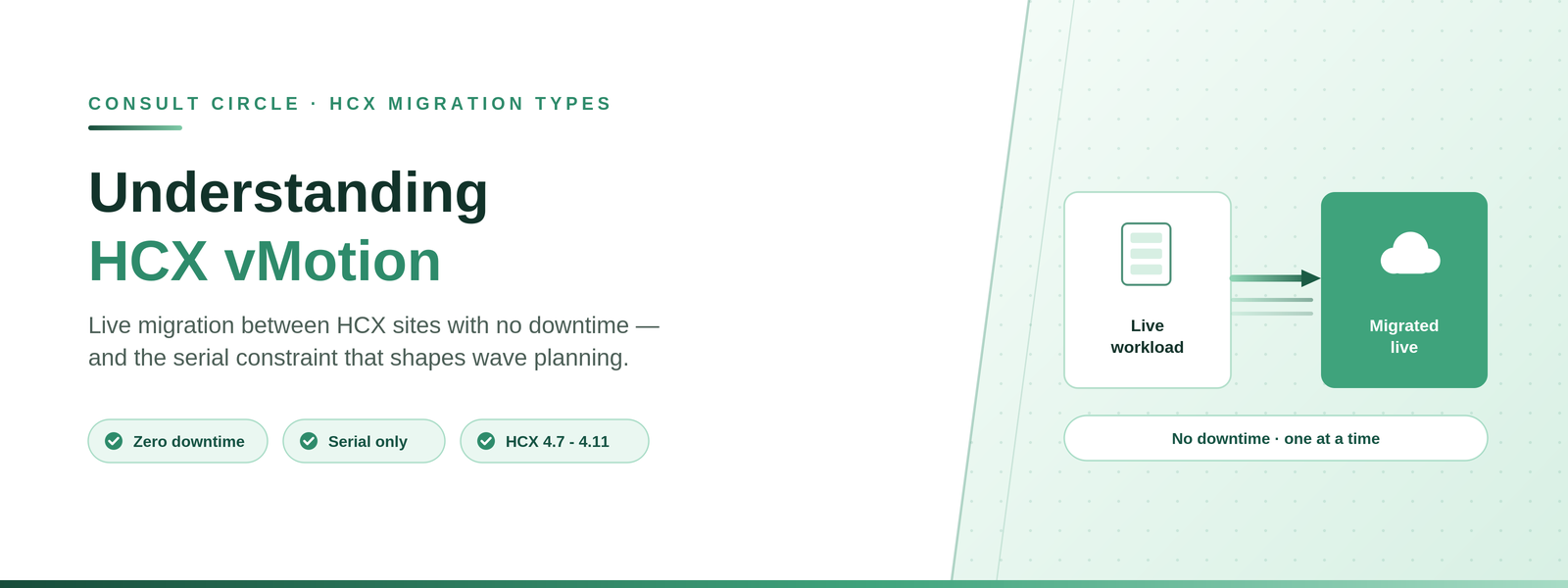
Live migration between HCX sites with no downtime - the requirements, the serial constraint, and the workloads it will refuse.
HCX vMotion transfers a live virtual machine from an HCX-activated vCenter Server to an HCX-activated destination site, or back the other way. The transfer captures the virtual machine active memory, execution state, IP address and MAC address, so the workload keeps running throughout.
Duration depends on connectivity - both the bandwidth available and the latency between sites. It is the right tool for individually critical workloads that cannot tolerate a reboot, and the wrong tool for volume. For volume, use Bulk Migration or Replication Assisted vMotion.
Applies to HCX 4.7 - 4.11, grouped by Broadcom as "VMware HCX 4.11 and Earlier". HCX ships inside VCF 9.0 onward with its own documentation set; behaviour is broadly the same, but validate specifics against the 9.0 documentation. Reference used: VMware HCX User Guide 4.11, Migrating Virtual Machines.
Critical workloads that cannot reboot?
We pick the right method per workload
Critical machines get vMotion, the rest do not hold up the programme. Wave design and delivery included.
Book a free 30-minute callRequirements and Limitations
- HCX Interconnect tunnels must be up and active.
- HCX vMotion requires 150 Mbps or higher throughput capability. Check the Network Underlay Minimum Requirements for your version.
- Virtual machine hardware version must be 9 or higher.
- The underlying architecture must be x86, regardless of guest operating system.
- Virtual machines with Raw Disk Mapping in virtual compatibility mode (RDM-V) can only be migrated using Bulk Migration.
- Port groups that are VLAN trunks do not appear in the migration interface.
Prerequisites
- The migration service is activated in both the source and destination site Compute Profile.
- The migration service is activated in the HCX Service Mesh.
NFC traffic uses the Management interface. VMware NFC is the secondary protocol during HCX vMotion. The HCX Interconnect uses a Network Profile dedicated to vMotion traffic, but that configuration does not include NFC. HCX always routes Cold and vMotion NFC traffic through its Management interface - even where ESXi hosts have a dedicated Provisioning VMkernel for NFC. Firewall rules must account for this; see our HCX port requirements guide.
Virtual Machine Restrictions
Virtual machines with the following attributes cannot be migrated with HCX vMotion.
- Shared SCSI bus, multi-writer flag, Fault Tolerance enabled, or shared VMDK disk sharing.
- Attached virtual media or ISO images.
- Virtual machine hardware version 8 or earlier.
- VMware software appliances, including vCenter Server and NSX Manager.
- vSphere VM Encryption is not supported with HCX migrations.
- Workloads with an attached serial port device. Detach the device first, or use Bulk Migration instead.
- Virtualization Based Security (VBS) is not supported with HCX migrations.
Behaviour Worth Knowing
- Serial only. Concurrent HCX vMotion migrations can be initiated up to the vSphere limits, but VMware only supports serial HCX vMotion between a source and destination pair. For parallel migration, use Bulk Migration or RAV.
- Per-VM vMotion encryption is downgraded during transfer. If the setting is Required, HCX changes it to Opportunistic at migration initialisation and sets it back to Required after completion.
- Change Block Tracking is deactivated. Virtual machines with CBT can be migrated, but HCX turns CBT off. Anything depending on it - typically backup products - needs checking after the move.
Procedure
Migrations are always configured from the HCX system that initiated the site pairing. In cloud-to-cloud deployments with bi-directional pairing, migrations can be initiated from either site.
- In the HCX interface, go to Services and then Migration.
- Select Migrate Virtual Machines.
- Choose the Remote Site Connection for the destination.
- From the Migration Profile, select vMotion.
- Select the virtual machines from the inventory list.
- Set the Transfer and Placement, Switchover, Interconnect Service Mesh and Extended options.
- Map the destination network for each virtual machine and confirm.
- Run Validation.
- Click Go, then monitor progress from the same Migration view.
Progress moves through Initiated, Transfer, Switchover and Migration Complete. Tasks are also visible in vCenter. The wider sequence, from site pairing to cutover, is covered in our step-by-step HCX walkthrough.
vMotion cannot be scheduled. Bulk, RAV and OSAM migrations support a scheduled switchover window. HCX vMotion does not. If the virtual machine is powered off when you submit it, HCX sets Cold Migration by default.
Things to Watch Out For
- Throughput floor, not a target. 150 Mbps is the minimum capability, not a comfortable operating point. On a constrained or high-latency link, vMotion will take far longer than expected, and it holds the pair serially while it does.
- One at a time means throughput planning changes. Do not size a migration wave around vMotion. Reserve it for the handful of workloads that genuinely cannot reboot.
- Check CBT-dependent tooling afterwards. Backup products relying on Change Block Tracking will silently fall back to full scans until CBT is re-enabled.
- Serial ports and ISOs block the migration. Both are common on legacy workloads and both are easy to miss during discovery. Sweep for them before scheduling, using the 70-point checklist.
Frequently Asked Questions
Does HCX vMotion cause downtime?
No. It is a live migration that transfers active memory and execution state while the workload keeps running. IP and MAC addresses are preserved.
How many virtual machines can I migrate with HCX vMotion at once?
VMware supports only serial HCX vMotion migrations between a source and destination site, even though concurrent operations can be initiated up to vSphere limits. Use Bulk Migration or Replication Assisted vMotion for parallel migration.
What bandwidth does HCX vMotion need?
A minimum of 150 Mbps throughput capability. Treat that as a floor rather than a design target, because migration duration depends on both bandwidth and latency between the sites.
Can I schedule an HCX vMotion migration?
No. Scheduling is available for Bulk, RAV and OSAM migrations through the Switchover settings, but not for vMotion.
Why can I not migrate my virtual machine with HCX vMotion?
The most common causes are hardware version 8 or earlier, an attached ISO or serial port device, Fault Tolerance or shared-disk configuration, or an RDM in virtual compatibility mode. Several of these can be handled by Bulk Migration instead.
Talk to Consult Circle
We select the right migration method per workload and run the waves as part of our VCF migration services and VMware HCX services.
Consult Circle
Book a free 30-minute call
0203 916 5593 · info@consultcircle.com
Talk to a migration consultant