How HCX Bulk Migration works, what it requires, what it will not move, and the switchover behaviour that surprises people on the night.
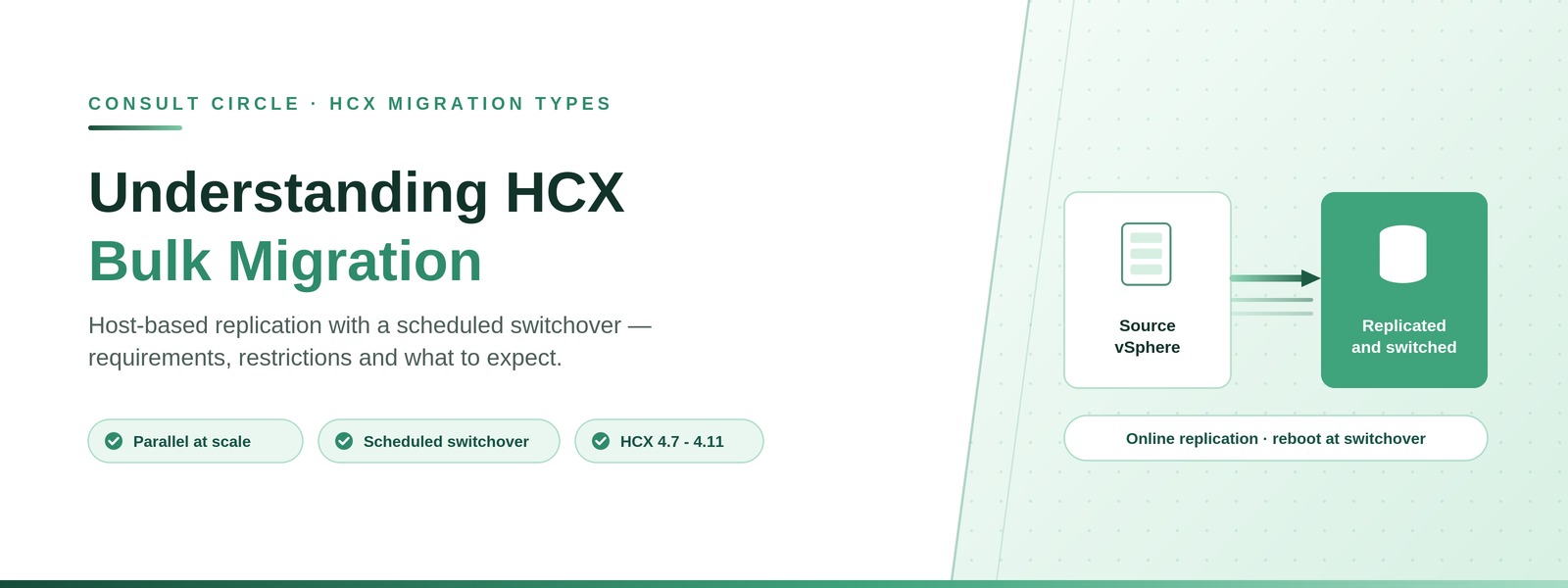
HCX Bulk Migration uses host-based replication to relocate a virtual machine between HCX-connected data centres. The source virtual machine stays online throughout replication and is bootstrapped on the destination ESX host once replication completes, so downtime is limited to a switchover that behaves like a reboot.
It is the workhorse for volume. Where HCX vMotion runs serially, Bulk Migration runs many virtual machines in parallel and lets you schedule the switchover into a maintenance window. If you are planning a wave-based move into VMware Cloud Foundation, this is the method most of your estate will use.
Applies to HCX 4.7, 4.8, 4.9, 4.10 and 4.11, which Broadcom groups as "VMware HCX 4.11 and Earlier". HCX is part of VCF 9.0 onward, which has its own documentation set. Behaviour is broadly the same, but validate against the 9.0 documentation before relying on any specific detail. Reference used: VMware HCX User Guide 4.11, Migrating Virtual Machines.
Planning an HCX wave?
We design the waves and run the switchovers
Method selection per workload, wave design and switchover scheduling, delivered by consultants who do this every week.
Book a free 30-minute callHow Bulk Migration Works
- Replication performs an initial full synchronisation to the remote site. Duration depends on the size of the virtual machine, the rate of change on its VMDKs, and available bandwidth.
- Replication bandwidth consumption varies with the number of disks per virtual machine and the number of virtual machines migrating concurrently.
- Switchover either starts immediately after the initial synchronisation, or waits for a scheduled time so it lands inside a maintenance window.
- While waiting for a scheduled switchover, delta synchronisation continues with a two-hour recovery point objective.
- Depending on churn on the source disk, additional snapshots are created during each RPO cycle. After each cycle, disk consolidation produces a replica instance VMDK (hbrdisk.RDID) on the target datastore.
- At switchover, the source virtual machine is powered off for a final offline synchronisation, data consolidation and instantiation at the destination.
- The migrated replica is powered on. HCX Manager renames the original virtual machine with a POSIX timestamp suffix to avoid a naming conflict.
- The original is copied to the Migrated VMs folder, where it remains available for recovery.
If the target cannot power on: there must be sufficient resources at the destination to power on the virtual machine. If the new machine cannot start, it stays powered off and the original is powered back on. The copy in the Migrated VMs folder is visible in the vSphere VMs and Templates view and can be used to recover the migrated machine.
Requirements
- The Hybrid Interconnect service and the Bulk Migration service must be activated and healthy in the relevant Service Mesh.
- Resources to create, power on and run the virtual machine must be available at the destination.
- Virtual machines must be running Hardware Version 7 or later.
- VMware Tools must be installed.
- Virtual machines must reside in a Service Cluster as defined in the Compute Profile.
- Network Extension is required for low-downtime migration operations.
- Personalisation scripts and system identity changes (hostname, IP, SID) cause one additional reboot during switchover.
- Bandwidth and network conditions must be sufficient for the dataset and its change rate, or switchover will not complete cleanly.
The underlying network flows matter more than most teams expect. Our guide to HCX port requirements and network flows sets out exactly which ports each service needs.
Additional Requirements for Encrypted Virtual Machines
Bulk Migration supports virtual machines using a virtual TPM device, with encrypted disks, or with encryption enabled without encrypted disks. These carry extra conditions. If vTPM is new territory, read our deep technical guide to vSphere vTPM first, and keep our fix for "Virtual TPM initialization failed" and "The virtual machine must be encrypted" errors to hand for switchover night.
| Requirement | Detail |
|---|---|
| Key provider present at target | The KMS or Native Key Provider used to encrypt the source must exist at the target site, regardless of the default key provider at either end |
| Matching KMS identity | The name and IP address of the KMS must match between source and target |
| Native Key Provider export | The NKP configuration must be exported from the source vCenter and imported into the target vCenter out of band |
| Minimum vSphere for KMS | vSphere 6.7 or later at both sites |
| Minimum vSphere for NKP | vSphere 7.0 Update 2c or later at both sites |
| HBR agent | Must be installed and running on the source ESXi hosts |
| Port 32032 | A secure listener is added on port 32032 on the vSphere Replication network of the IX appliance, and HCX firewall rules are updated to match |
Encryption spreads at the target. If a virtual machine has an encrypted configuration but unencrypted or partially encrypted disks, and you select the VM encryption storage policy during migration, the entire virtual machine - configuration and all disks - is encrypted at the target. The same applies to vTPM-enabled machines with any encrypted component. Decide deliberately rather than discovering it afterwards.
Restrictions
- Raw Device Mappings in Physical Compatibility mode cannot be migrated. RDMs in Virtual Compatibility mode can, and are converted to VMDKs at the destination.
- Virtual machines with mounted ISO images cannot be migrated, although the Bulk Migration operation can force unmount them.
- Snapshots are not migrated. The operation offers an option to remove them.
- DirectPath I/O configurations must have the device removed first.
- Shared SCSI bus, multi-writer flag, Fault Tolerance, or shared VMDK disk sharing are all unsupported.
- Virtual machines that cannot be gracefully powered off cannot be migrated, unless the Force Power-off option is used.
- Virtual NVMe (vNVMe) controllers are not supported.
- Port groups that are VLAN trunks do not appear in the migration interface.
- VMware software appliances, including vCenter Server and NSX Manager, cannot be migrated with Bulk Migration.
- Virtualization Based Security (VBS) is not supported with HCX migrations.
Procedure
Migrations are always configured from the HCX system that initiated the site pairing. In cloud-to-cloud deployments with bi-directional pairing, migrations can be initiated from either site.
- In the HCX interface, go to Services and then Migration. The Migration Tracking view shows current and past migrations.
- Select Migrate Virtual Machines.
- Choose the Remote Site Connection for the destination.
- From the Migration Profile, select Bulk Migration.
- Select the virtual machines you want to migrate from the inventory list.
- Set the Transfer and Placement, Switchover, Interconnect Service Mesh and Extended options. Use the group settings area to apply defaults to every selected machine, or expand an individual machine to override them.
- Map the destination network for each virtual machine and confirm.
- Run Validation, which surfaces problems before anything moves.
- Click Go, then monitor progress from the same Migration view.
Progress moves through Initiated, Transfer, Switchover and Migration Complete. Expanding a virtual machine and selecting the previous events option shows the step-by-step event history, which is the fastest way to see where a migration is actually spending its time. For the full end-to-end sequence, see how to migrate to VCF using HCX.
Scheduling: Bulk, RAV and OSAM migrations can have a scheduled switchover date and time set in the Switchover options. vMotion migrations cannot be scheduled.
Things to Watch Out For
- The original is renamed, not deleted. A POSIX timestamp suffix is appended and the machine lands in the Migrated VMs folder. It consumes storage until you clear it, and clearing it too early removes your rollback.
- MAC address changes unless you ask otherwise. If the Retain MAC option is not selected, the migrated virtual machine gets a new MAC address. Audit anything licensed against MAC before you start.
- Two-hour RPO between initial sync and switchover. A scheduled switchover a week away means a week of delta synchronisation. Factor the bandwidth into wave planning rather than counting only the initial transfer.
- Replica instance VMDKs on the target datastore. Consolidation after each RPO cycle creates hbrdisk.RDID files. Size the target datastore with this in mind.
- Identity changes cost an extra reboot. Hostname, IP or SID changes add a reboot during switchover, which lengthens the outage beyond what people expect from "a reboot".
If a Bulk Migration reports zero percent and never moves, the cause is almost always the replication handshake rather than the workload - see HCX Bulk and RAV migration stuck at 0% base sync. For everything else, our HCX migration problems guide and the 70-point pre-migration checklist cover the common failures.
Frequently Asked Questions
How much downtime does HCX Bulk Migration cause?
Downtime is limited to the switchover, which is broadly equivalent to a reboot of the virtual machine plus the time to instantiate it at the destination. Replication happens with the source online. Guest customisation such as a hostname or IP change adds one further reboot.
Can Bulk Migration run virtual machines in parallel?
Yes. Parallel operation is the main reason to choose Bulk Migration over HCX vMotion, which VMware supports only serially between a source and destination pair. Concurrency limits are published in the VMware Configuration Maximums tool.
Does Bulk Migration keep the IP address?
Yes, when the network is extended with HCX Network Extension. Without extension you can map to a different target network and optionally set a new IP, gateway and subnet mask during the migration.
Can I migrate encrypted virtual machines with Bulk Migration?
Yes, with conditions. The key provider used at source must be present at the target with a matching name and IP address, Native Key Provider configuration must be exported and imported out of band, and minimum vSphere versions apply.
Why did my migrated virtual machine get a new MAC address?
The Retain MAC option was not selected. In a single vCenter deployment, the original powered-off virtual machine keeps its MAC assignment in the vCenter database, so the new machine is forced to take a different address to avoid duplication.
Talk to Consult Circle
We plan and run HCX migrations into VCF at scale, including wave design, method selection per workload and switchover scheduling. Size the effort first with our VCF migration estimator, or book a call.
Consult Circle
Book a free 30-minute call
0203 916 5593 · info@consultcircle.com
Talk to a migration consultant