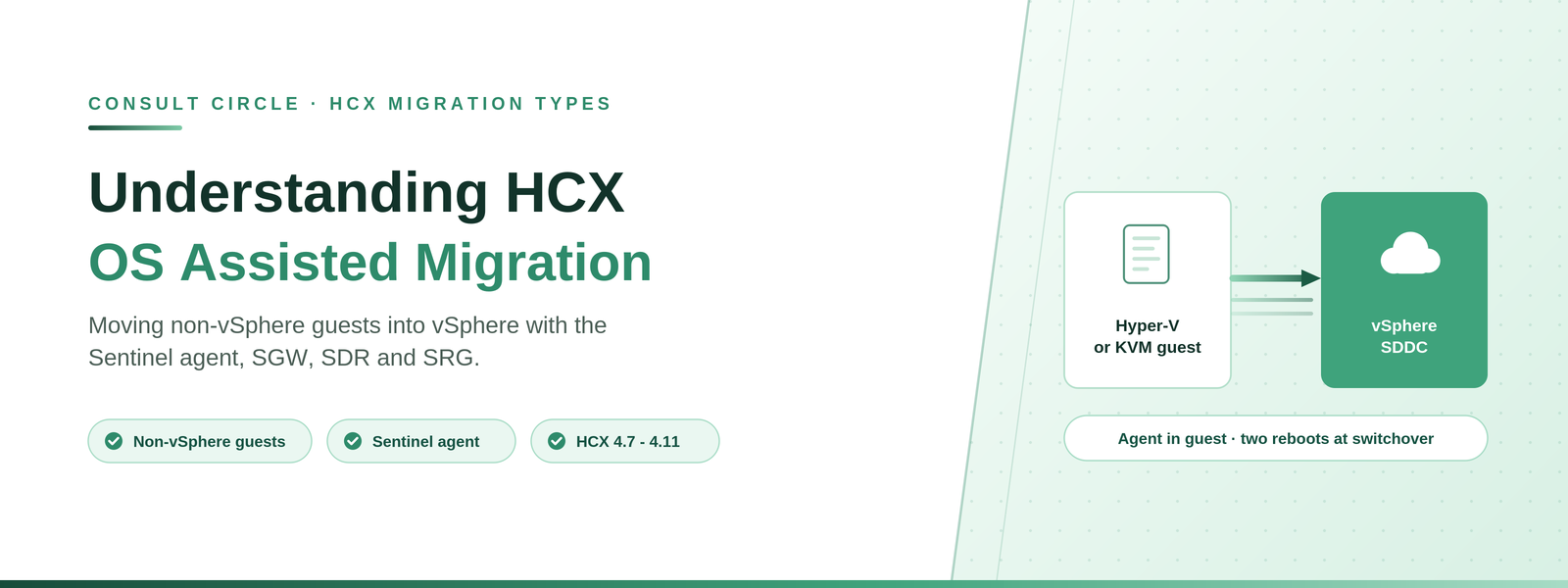
Migrating non-vSphere workloads into vSphere with the Sentinel agent - architecture, the Windows and Linux differences, and the switchover behaviour to plan for.
HCX OS Assisted Migration (OSAM) moves guest virtual machines from non-vSphere environments into a vSphere SDDC. It works through Sentinel software installed inside each Linux or Windows guest, which gathers system configuration and assists with data replication, together with Sentinel appliances deployed at the HCX sites.
It is the only HCX migration type that reaches inside the guest operating system, and that shapes everything about how it behaves.
Applies to HCX 4.7 - 4.11. WAN Optimization is not available in HCX 4.11.3 and later. HCX ships inside VCF 9.0 onward with its own documentation set. Reference used: VMware HCX User Guide 4.11.
Hyper-V, KVM or physical estate?
We scope the agent rollout before anyone commits to a date
OSAM introduces flows from the workload network and an agent deployment programme. Both need scoping first.
Book a free 30-minute callOSAM Architecture
Which appliances get deployed depends on how the sites are paired.
| Mode | Appliances deployed | When it applies |
|---|---|---|
| Multi-site mode | Sentinel Gateway (SGW) at the HCX Connector source site, Sentinel Data Receiver (SDR) at the HCX Cloud Manager destination site | vSphere-based site pairs. The two appliances work together to migrate workloads from the non-vSphere environment |
| Single-site mode | Sentinel Resource Gateway (SRG) at the vSphere-based site | Where the non-vSphere guest environment is paired directly with a vSphere-based HCX Connector or Cloud Manager. The SRG alone handles migration |
The Sentinel agent must be installed on every guest virtual machine you intend to migrate. Once installed, a secure connection is established between the guest and the Sentinel appliance, and HCX builds an inventory of migration candidates as agents come online. The network path between guests and Sentinel appliances is defined by the Guest Network Profile setting in the Compute Profile.
The zone implication. The Sentinel connection originates from every migrating guest, on your workload networks. Every other HCX flow originates from the management network. If workload networks are segmented from the appliance network - and they should be - this is a bulk firewall change affecting potentially hundreds of source addresses, and it belongs to a different team with a different change calendar. Raise it in week one, alongside the rest of your HCX port requirements.
How OSAM Works
- Replication begins a full synchronisation to the destination. The guest stays online until the final delta synchronisation.
- Before the final delta sync, the OSAM service quiesces the guest - on a best-effort basis.
- When delta synchronisation finishes, switchover triggers. It can start immediately or wait for a scheduled window.
- HCX performs hardware mapping of the replicated volumes, adding drivers and modifying OS configuration files at the destination. The migrated virtual machine reboots during this fix-up process.
- As the final step, the source is powered off, the migrated replica is connected to the network, and switchover completes.
- HCX Manager names the replica with the host name of the source virtual machine.
- VMware Tools is installed on the migrated virtual machine and the migration completes.
Two reboots at the target. The vSphere target virtual machine reboots twice during the switchover phase. Communicate that to application owners, because it is longer than the single reboot people expect from a bulk-style migration.
Windows and Linux Behave Differently
| Aspect | Windows guests | Linux guests |
|---|---|---|
| Change detection | The service reads the entire disk to determine changed blocks, which can be time consuming | The service walks the entire file system to determine changed files |
| Continuous sync optimisation | Achieved by identifying changed file system blocks | A predetermined set of files and directories in /opt/vmware/hcx/osam/excluded_paths is excluded from continuous sync |
| Fix-up mechanism | A temporary local user is created on the migrated Windows system during switchover, and deleted after fix-up completes | An independent software stack on a separate fix-up disk is used. For 64-bit workloads HCX uses the Photon 3.0 64-bit fix-up disk, which is detached and deleted at the end of switchover |
Excluded files are always synchronised during the initial and final synchronisation phases, so exclusion affects the continuous cycle only. If you add exclusions by editing the file, restart the vmware-hcx-osam-sentinel service with service or systemctl.
Quiescing and Retry Behaviour
Two behaviours are worth understanding before your first OSAM wave, because both present as a migration that appears stuck.
- Quiescing is best effort. A Linux service can start immediately after OSAM has quiesced services and stopped known processes. If a process starts after quiescing, final synchronisation may not complete and the switchover appears to hang.
- Synchronisation retries for eight hours by default. If sync fails - a broken network connection, for example - it retries for eight hours. You can shorten this to as little as one hour by setting max_retry_interval in /opt/vmware/hcx/osam/etc/sync.params, then restarting the vmware-hcx-osam-sentinel service.
If the Source Does Not Power Off
The documented recovery path matters, because this is a state you may have to resolve manually. If the source does not power off, HCX attempts to power off the replica instead. If the replica powers off successfully it remains connected to its NICs, and you can manually power off the source and power on the replica. If the replica does not power off, both the guest and the replica remain running, but the replica is not connected to the network. In that case, activate the replica NICs manually in vCenter, power off the source if it is still running, and power on the migrated virtual machine.
Procedure
- In the HCX interface, go to Services and then Migration.
- Select Migrate Virtual Machines.
- Choose the Remote Site Connection for the destination.
- From the Migration Profile, select OS Assisted Migration.
- Select the virtual machines from the inventory list.
- Set the Transfer and Placement, Switchover, Interconnect Service Mesh and Extended options.
- Map the destination network for each virtual machine and confirm.
- Run Validation.
- Click Go, then monitor progress from the same Migration view.
Things to Watch Out For
- Agent deployment is a project. Installing software inside hundreds of guests needs credentials, change approval and a deployment mechanism. Machines with no known credentials become the long tail.
- Check the guest OS support matrix early. OSAM supports a defined set of Linux and Windows operating systems, not any guest. A cluster of unsupported legacy systems found late forces a second migration approach.
- Windows change detection reads the whole disk. On large Windows volumes this materially lengthens each sync cycle. Factor it into wave timing rather than assuming Linux-like behaviour.
- A stuck switchover is often a restarted service. Before escalating, check whether something started after quiescing. If you do escalate, our guide to which log to read before opening a case saves a round trip.
- Plan for MAC and hardware identity changes. OSAM creates a new virtual machine at the target. Audit anything licensed against MAC address or machine identity before the wave.
- WAN Optimization is gone from 4.11.3. If your OSAM design assumed WAN Optimization in the Service Mesh, confirm your version.
Frequently Asked Questions
What is HCX OS Assisted Migration?
A migration type that moves guest virtual machines from non-vSphere environments into a vSphere SDDC, using Sentinel software installed inside each Linux or Windows guest together with Sentinel appliances at the HCX sites.
What is the difference between SGW, SDR and SRG?
In multi-site mode, the Sentinel Gateway sits at the source and the Sentinel Data Receiver at the destination, working as a pair. In single-site mode, where the non-vSphere environment pairs directly with a vSphere-based HCX site, a single Sentinel Resource Gateway handles the migration.
How much downtime does OSAM cause?
The guest stays online through replication. Downtime covers quiescing, final delta synchronisation and switchover, during which the target virtual machine reboots twice as part of the fix-up process.
Why is my OSAM switchover stuck?
Most often because a process started on the guest after OSAM quiesced it, preventing final synchronisation from completing. Quiescing is best effort. Synchronisation also retries for eight hours by default, which can look like a hang.
Can I speed up OSAM synchronisation?
For Linux guests you can add files and directories to the excluded_paths file so they are skipped during continuous synchronisation, then restart the Sentinel service. Excluded files are still synchronised during initial and final sync. You can also shorten the retry interval from eight hours to as little as one.
Does OSAM install VMware Tools?
Yes. VMware Tools is installed on the migrated virtual machine as part of completing the migration.
Talk to Consult Circle
OSAM introduces flows from the workload network and an agent deployment programme. We scope both as part of our VCF migration services and VMware HCX services, and the 70-point checklist covers the pre-work.
Consult Circle
Book a free 30-minute call
0203 916 5593 · info@consultcircle.com
Talk to a migration consultant