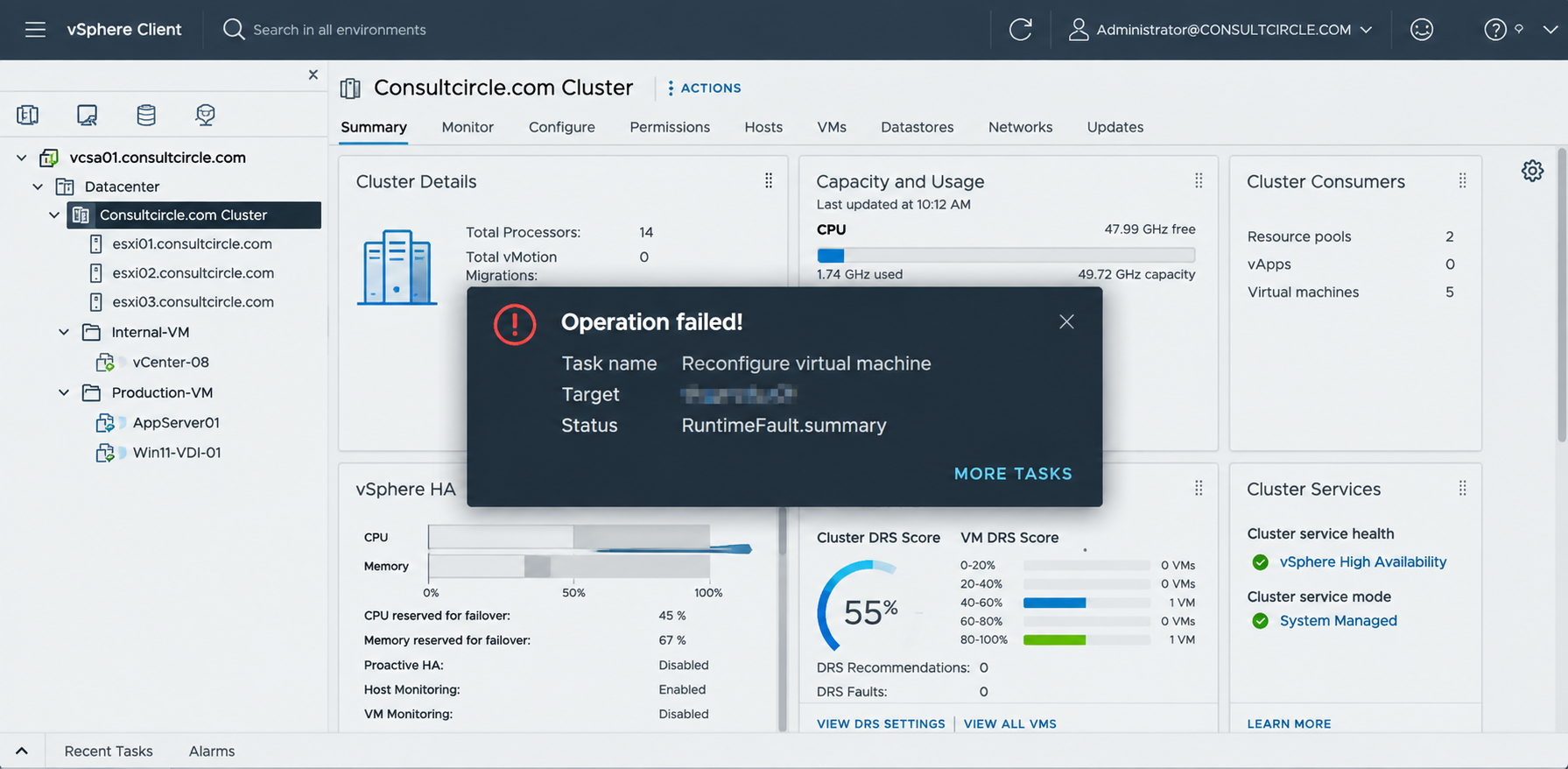
There is a particular kind of VMware error that immediately makes me suspicious: the one that sounds incredibly specific while actually telling you only half the story. This is one of them:
The virtual machine must be encrypted.
I can imagine the reaction. "But it was working yesterday." Or: "The VM was encrypted before the migration." Or perhaps the most frustrating version: "All I did was restore it from backup."
Then you look further into the power-on failure and find something much more interesting:
Virtual TPM initialization failed.
Now we are getting somewhere. Broadcom KB 377302 documents exactly this situation: a Windows 11 or Windows Server virtual machine can fail to start after migration or restoration when its virtual Trusted Platform Module (vTPM) is missing, mismatched or can no longer be correctly initialised. Broadcom attributes the failure to the cryptographic state or binding associated with the vTPM becoming broken, lost or invalidated.
The important lesson is that this is not simply an encryption-policy problem. It is a cryptographic identity and key-management problem. And once you start looking at it that way, the error makes much more sense. If you want the full architectural background first, our VMware vSphere vTPM deep technical guide covers how vTPM, VM encryption and key providers fit together.
What Does "The Virtual Machine Must Be Encrypted" Actually Mean?
Let us start with the two errors Broadcom documents. At the ESXi layer, you may encounter:
Failed to power on the virtual machine <VM-Name>.
The virtual machine must be encrypted.
At the vCenter layer, the message can go further:
The virtual machine must be encrypted.
Failed to start the virtual machine.
Module DevicePowerOn power on failed.
Virtual TPM initialization failed.
Broadcom documents the affected scenario around Windows guests using vTPM, particularly following migration or backup restoration. The phrase I care about most is Virtual TPM initialization failed. That is the clue.
The VM is not necessarily failing because Windows is corrupt. It is not necessarily a damaged VMDK. And blindly changing storage policies is not where I would start. I would start by asking: can vSphere still decrypt and initialise the protected state belonging to this VM's vTPM? That is a much better troubleshooting question.
Why VMware vTPM and Encryption Are Connected
A VMware virtual Trusted Platform Module gives the guest operating system TPM functionality without assigning a physical TPM chip directly to the VM. That sounds straightforward until we consider what a TPM contains. A TPM exists to work with sensitive cryptographic information, so VMware cannot simply write the vTPM's secrets into an ordinary VM configuration file and hope nobody reads them. The vTPM state needs protection.
That is where VM Encryption and the vSphere key provider enter the architecture. A useful mental model is:
Windows 11 / Windows Server
        |
        v
      vTPM
        |
        v
 Protected TPM state
        |
        v
 VM encryption layer
        |
        v
   Key Provider
This dependency is also why a Windows VM can appear encrypted even when an administrator never deliberately chose to encrypt its guest disks. Broadcom documents that adding a vTPM causes vSphere to apply the encryption protection required for the vTPM. Protecting the VM state required by vTPM is not the same architectural decision as deliberately encrypting every VMDK — and it explains why encryption suddenly appears in a troubleshooting conversation that began with a TPM.
Why Does vTPM Fail After a VMware VM Restore?
A traditional VM recovery mindset is something like: restore configuration + restore VMDKs = recovered VM. For many workloads, that mental model gets us surprisingly far. A vTPM-enabled workload introduces more dependencies:
VM configuration
      +
Virtual disks
      +
vTPM state
      +
Encryption relationship
      +
Accessible encryption keys
      =
Recoverable vTPM-enabled VM
Broadcom explains that when a vTPM-enabled VM is improperly migrated or restored, the host can lose its ability to decrypt the vTPM's protected data. Once that happens, vTPM initialisation fails during power-on.
This is why I would never treat a successful backup of a Windows 11 VMDK as proof that I have a fully recoverable Windows 11 virtual machine. The disk is only part of the workload. The cryptographic dependencies matter too.
Why Windows 11 Makes the Failure More Visible
Windows 11 brought TPM 2.0 firmly into everyday virtual infrastructure administration. Microsoft's Windows 11 hardware requirements include TPM 2.0, and VMware satisfies that requirement in a virtual machine through vTPM. Broadcom also states that supported Windows 11 virtual machines must meet Microsoft's prerequisites, including TPM 2.0.
This means TPM is no longer some optional security component that most virtualisation administrators can safely ignore. For a supported Windows 11 configuration, it is part of the platform. Broadcom also warns against relying on workarounds that bypass the vTPM requirement: KB 377302 notes that subsequent Windows changes can invalidate such workarounds, and describes bypassing the vTPM requirements as unsupported. For production systems, build the VM correctly rather than designing around avoiding the requirement.
Before Touching the vTPM, Check BitLocker
This is the point where I would deliberately slow down during a real incident. Do not immediately delete the TPM. First ask: is BitLocker enabled? If it is, find the recovery key. Then verify the recovery key. Then continue.
Broadcom specifically warns that recreating or resetting the vTPM can cause Windows to present a BitLocker recovery prompt, so its documented prerequisites include making sure the BitLocker Recovery Key is available before changing the TPM configuration.
This makes perfect sense. BitLocker can use the TPM as part of the mechanism protecting access to its encryption material. From vCenter's perspective, replacing a vTPM looks like changing virtual hardware. From Windows' security perspective, you may just have changed a fundamental part of the machine's trusted cryptographic environment. Those are very different perspectives.
So my rule is simple: no verified BitLocker recovery key, no destructive vTPM troubleshooting.
First Checks When VMware Reports "Virtual TPM Initialization Failed"
Before changing anything, establish what you are actually dealing with. Broadcom's KB identifies several prerequisites worth verifying, including vCenter, ESXi and virtual hardware requirements, UEFI firmware, Secure Boot, encryption state and storage policy checks.
1. Check the VM's encryption state
In the vSphere Client: VM → Summary → Encryption. Establish whether vCenter considers this VM encrypted and whether the expected key-provider relationship exists. Do not change anything yet — you are establishing state.
2. Check the storage policy
Next: VM → Edit Settings → Hard disk, and review the VM Storage Policy. Broadcom specifically directs administrators to check whether the expected encryption policy is applied when troubleshooting this condition. This becomes especially important after migration, because source and destination storage policy configurations may not be identical. A migration that moves the bits successfully is not necessarily a migration that preserves every security dependency correctly.
3. Check VM firmware
The VM should be configured for UEFI in the scenario documented by Broadcom, and the KB also specifies UEFI Secure Boot as a prerequisite. This matters particularly when you are repairing or rebuilding a VM around an existing Windows disk — do not assume a newly created VM inherited the same firmware configuration as the original.
A Windows installation originally deployed under UEFI should not casually be rebuilt around a legacy BIOS VM configuration. Broadcom's separate vTPM troubleshooting guidance also warns that changing an existing legacy BIOS installation to EFI can itself make the guest unbootable if the disk and operating-system configuration are not compatible with UEFI boot. Firmware changes need to be deliberate.
4. Check VM hardware compatibility
Broadcom KB 377302 identifies virtual hardware version 14 or later among its prerequisites for the recovery scenario. The precise requirements can vary depending on the vSphere release and workflow being used, so verify compatibility against the target environment rather than blindly upgrading virtual hardware during an outage. Virtual hardware upgrades are easy; rolling them back is not always as convenient.
The Native Key Provider Is Where Things Get Interesting
If the vTPM depends on encrypted state, something has to provide the cryptographic keys. For modern vSphere environments, that can be the vSphere Native Key Provider (NKP). The navigation path is vCenter Server → Configure → Security → Key Providers. Broadcom's documented recovery process for this issue includes creating and enabling a Native Key Provider when an appropriate provider is not already available.
vCenter Server
      |
      v
Native Key Provider
      |
      v
 Encryption Key
      |
      v
Protected VM/vTPM state
      |
      v
     VM
The vTPM does not somehow magically encrypt itself. There is a key-management architecture behind it.
Configuring a VMware Native Key Provider
Where an NKP needs to be configured, the Broadcom workflow is essentially:
- Open the vCenter Server configuration.
- Navigate to Security → Key Providers.
- Select Add → Add Native Key Provider.
- Give the provider an appropriate unique name.
- Configure the host TPM restriction appropriately.
- Create the provider.
- Back up the Native Key Provider.
- Securely store that backup.
- Set the appropriate provider as default.
One step in that process deserves far more attention than the others: back up the key provider. Broadcom states that the NKP becomes active after the required backup operation is completed, and related guidance describes securely retaining the generated .p12 backup because losing the key material can prevent access to encrypted workloads that depend on it. Treat that file like disaster-recovery material, because that is exactly what it is.
The physical TPM checkbox that can catch you out
When configuring the Native Key Provider, there is an important option concerning TPM-protected ESXi hosts. Broadcom's KB states that if your ESXi hosts do not have physical TPM 2.0 devices, the option restricting the key provider to TPM-protected ESXi hosts must be unchecked for this scenario.
This exposes a useful distinction: a physical TPM in the ESXi host is not the same thing as a vTPM presented to the guest VM. A VMware vTPM is not simply the host's physical TPM passed through to Windows. Broadcom's Windows 11 deployment guidance confirms a vTPM can be configured through a vSphere key provider architecture even where the physical hosts do not contain TPM 2.0 hardware — so check that NKP option before assuming an older server fleet makes vTPM impossible.
Resetting the VMware vTPM
Once you have verified the BitLocker recovery key, key-provider availability, encryption configuration, UEFI, Secure Boot, virtual hardware compatibility and the VM's current configuration, then you can consider the vTPM itself.
For the failure described in KB 377302, Broadcom's recovery procedure removes the existing Trusted Platform Module and adds a new vTPM. In the vSphere Client:
VM
 |
 +-- Edit Settings
       |
       +-- Existing Trusted Platform Module
       |      |
       |      +-- Remove
       |
       +-- Add New Device
              |
              +-- Trusted Platform Module
Save the configuration and attempt to power on the VM. A simple operation — with potentially significant cryptographic consequences. That distinction is worth remembering.
Why replacing a vTPM can trigger BitLocker recovery
Imagine Windows has been using TPM-backed protection. The operating system has established trust around the original TPM state. We remove it and create another vTPM. To vSphere, we have fixed a broken virtual device. To Windows, this is not necessarily the same TPM anymore.
So when Windows boots, BitLocker can reasonably say: "Something fundamental about this machine's trusted environment changed." That is why the recovery key matters. Broadcom explicitly warns that a recreated or reset vTPM can result in Windows requesting BitLocker recovery. This is expected security behaviour, not necessarily another VMware failure.
What If Resetting the vTPM Does Not Work?
Broadcom documents a fallback approach: create a new virtual machine with vTPM and Secure Boot correctly enabled, then attach the original VMDK as an existing hard disk.
Broken VM
   |
   +---- Original Windows VMDK
                  |
                  v
            Detach / preserve
                  |
                  v
        New correctly configured VM
                  |
        +---------+---------+
        |                   |
       UEFI                vTPM
        |                   |
   Secure Boot        Valid encryption
        |                   |
        +---------+---------+
                  |
                  v
        Attach existing VMDK
                  |
                  v
             Boot Windows
Again, BitLocker changes the risk profile. If that original Windows installation expects TPM-backed BitLocker state, the recovery key may be needed when it sees the new virtual TPM. Never perform this procedure without understanding the guest encryption configuration first.
The Backup Lesson Hidden Inside This VMware Error
For me, KB 377302 is really a backup architecture lesson disguised as a troubleshooting article. A backup system might tell me "VM Backup: SUCCESS". Wonderful. But what exactly did I prove? That the backup job completed — or that I can recover the application? Those are not the same thing.
For a vTPM-enabled Windows VM, recovery testing needs to prove the entire chain:
Restore VM
    |
    v
VM decrypts
    |
    v
vTPM initializes
    |
    v
Windows boots
    |
    v
BitLocker accepts platform state
    |
    v
Application starts
    |
    v
Recovery successful
Until you have tested that, you have tested a backup operation. You have not necessarily tested recovery. Our disaster recovery and backup services are built around exactly this distinction.
Native Key Provider Backup Should Be in the DR Runbook
If workloads depend on an encryption key provider, disaster recovery documentation must include the key provider. A DR plan that says "restore vCenter, restore VMs, power on services" is incomplete if those VMs depend on cryptographic material that is no longer available.
The runbook should answer:
- Where is the NKP backup?
- Who can access it during an incident?
- Is its password stored securely and independently?
- Have we tested restoration?
- Can we recover it if the primary vCenter is completely gone?
- Does the secondary site have the cryptographic prerequisites needed by the workloads?
That is the difference between backing up encryption and designing recoverable encryption.
HCX Migration Adds Another Layer
KB 377302 also covers VMware HCX migration for encrypted VMs. This matters because HCX can make moving workloads look deceptively straightforward: select VM, select destination, migrate. But an encrypted Windows 11 VM with vTPM carries security requirements beyond copying storage blocks.
Broadcom's documented HCX workflow calls for TCP port 32032, the Secure Listener Port, to be available between the relevant source and target replication components. For Bulk Migration, Broadcom then instructs administrators to select the destination datastore and an appropriate VM Encryption Storage Policy, so the workload lands at the destination in the required encrypted state:
Source Windows VM
       |
      vTPM
       |
 Encrypted state
       |
       v
    HCX IX
       |
  TCP 32032
       |
       v
 Target vSphere
       |
VM Encryption Policy
       |
       v
 Destination VM
That encryption policy selection is not decoration. It is part of preserving the workload's security architecture. If you are planning a move, our guides to HCX Bulk Migration, HCX vMotion and Replication-Assisted vMotion explain each migration type in detail.
HCX Bulk Migration checklist for vTPM Windows VMs
Before moving vTPM-enabled Windows 11 or Windows Server workloads with HCX, validate four areas:
- Connectivity — confirm the required replication connectivity, including the Secure Listener communication documented by Broadcom.
- Destination key architecture — make sure the destination can satisfy the encryption requirements of the migrated VM.
- Storage policy — explicitly choose the appropriate VM Encryption Storage Policy at the target.
- Recovery — know where the BitLocker recovery key is before migration.
Then validate the migration before execution. Broadcom's documented procedure uses HCX's validation workflow before the migration is run, and for encrypted workloads that validation is especially valuable.
Another Common Failure: "Cannot Add vTPM Because No Key Provider Is Configured"
There is a closely related failure worth covering because it is part of the same architecture. You try to create a Windows 11 VM and vCenter reports that a Virtual TPM cannot be added because the environment does not have a key provider.
Broadcom documents this separately for vCenter 7.x and 8.x environments. The underlying reason is straightforward: vTPM requires cryptographic protection, and vSphere needs an active Native or Standard Key Provider to provide the required key-management capability. The fix is not to hunt for a hidden TPM setting inside Windows — the dependency sits one layer lower:
Windows 11
    |
   vTPM
    |
VM cryptographic protection
    |
Key Provider
Fix the bottom of that stack first.
What If "Trusted Platform Module" Is Missing From Add New Device?
If you open Edit Settings → Add New Device and Trusted Platform Module is not there, check two things early:
- Is the appropriate key provider configured and set as default?
- Is the VM using UEFI rather than legacy BIOS?
Broadcom's current troubleshooting guidance identifies both conditions as causes of the vTPM option being unavailable. The firmware check deserves caution: do not casually flip a production Windows VM from BIOS to UEFI simply because the menu says you can. Broadcom warns that the guest's disk layout must be compatible with UEFI, and an incompatible existing Windows installation can stop booting after the firmware change. Test that change before performing it on a production workload.
Do Not Forget vCenter Permissions
There is another failure mode that looks like infrastructure when it is actually RBAC. A user can have enough permissions to create ordinary VMs but still fail when deploying Windows 11 machines containing vTPM. Why? Because vTPM introduces cryptographic operations.
Broadcom's guidance identifies cryptographic privileges such as Register Host, Register VM and Encrypt new, alongside permission to add or remove virtual devices, as relevant to Windows 11 vTPM deployment workflows. This matters in environments using custom vCenter roles: the administrator account works, the automation account fails, and everyone starts blaming the template. Sometimes the missing component is simply cryptographic privilege.
A Better Way to Troubleshoot "Virtual TPM Initialization Failed"
Rather than randomly changing settings, use the dependency chain. Start at the bottom:
        WINDOWS
           ^
           |
        BITLOCKER
           ^
           |
          vTPM
           ^
           |
  ENCRYPTED VM STATE
           ^
           |
      KEY PROVIDER
           ^
           |
    vSPHERE / ESXi
Then ask one question at each layer:
- vSphere layer — are vCenter, ESXi and VM hardware levels compatible with the intended configuration?
- Key provider layer — does the required provider exist, is it active, is it set appropriately, is its backup safe, and can the hosts use it?
- Encryption layer — does vCenter recognise the VM's encryption state, is the correct storage policy attached, and can the required cryptographic material be accessed?
- vTPM layer — does the vTPM exist, can it initialise, and was its protected state damaged or invalidated during migration or restore?
- Windows layer — is UEFI configured correctly, is Secure Boot configured, and does Windows see a valid TPM 2.0 device?
- BitLocker layer — does the guest expect the original TPM state, and is the BitLocker recovery key available?
That method is slower for the first five minutes. It is usually much faster over the next two hours.
A Production Recovery Workflow
If you encounter "The virtual machine must be encrypted" and "Virtual TPM initialization failed" after a migration or restore, a safe workflow looks like this:
- Preserve. Do not immediately remove the vTPM. Preserve the current VM configuration and understand the available backup or rollback options.
- Establish guest encryption state. Determine whether BitLocker is enabled, then locate and verify the recovery key.
- Validate platform configuration. Check vCenter, ESXi and VM hardware compatibility, UEFI, Secure Boot, VM encryption status and the storage policy.
- Validate key management. Check Native or Standard Key Provider availability, provider status, default provider configuration, host compatibility and the NKP backup.
- Repair the vTPM. Only after those checks, remove and recreate the vTPM as documented for this failure condition.
- Boot and recover. Start Windows. If BitLocker recovery appears, use the verified recovery key.
- Rebuild if required. If the original VM configuration cannot be repaired, build a correctly configured replacement VM with UEFI, Secure Boot and vTPM, then attach the preserved original VMDK as documented by Broadcom.
- Validate the application. A Windows login screen is not the end of the incident. Validate services, applications, security tooling and anything else that uses TPM-backed identity. Then document what broke.
Frequently Asked Questions
Why does my Windows 11 VMware VM say "The virtual machine must be encrypted"?
If the VM uses vTPM, vSphere needs cryptographic protection for the vTPM's sensitive state. After an improper migration or restoration, the relationship between that protected state and its encryption keys can become invalid, causing vTPM initialisation and VM power-on to fail.
What does "Virtual TPM initialization failed" mean in VMware?
It indicates that vSphere could not successfully initialise the virtual Trusted Platform Module. In the migration and restore scenario documented by Broadcom, this can occur because the cryptographic state associated with the vTPM is broken, missing or cannot be decrypted.
Does Windows 11 require vTPM on VMware vSphere?
A supported Windows 11 VM needs to meet Microsoft's TPM 2.0 requirement. VMware vSphere provides this capability using a virtual Trusted Platform Module. Broadcom states that Microsoft's prerequisites, including TPM 2.0, need to be satisfied for supported Windows 11 virtual machines.
Do I need a VMware Native Key Provider for Windows 11 vTPM?
You need an appropriate vSphere key provider for the vTPM cryptographic requirements. Native Key Provider is one available approach on supported vSphere versions, while Standard Key Provider architectures are also supported in appropriate environments.
Can I reset a VMware vTPM?
For the initialisation failure documented in KB 377302, Broadcom instructs administrators to remove the existing TPM device and add a new Trusted Platform Module after validating the prerequisites.
Will resetting vTPM trigger BitLocker?
It can. Broadcom specifically warns administrators to have the BitLocker Recovery Key available because resetting or recreating the vTPM can cause Windows to enter BitLocker recovery.
What happens if resetting VMware vTPM does not fix the VM?
Broadcom's documented fallback is to create a correctly configured VM with vTPM and Secure Boot, then attach the original VMDK as an existing disk. Guest-level encryption and boot configuration still need to be accounted for.
Why is the Trusted Platform Module option missing in vCenter?
Current Broadcom troubleshooting guidance identifies an incorrectly configured or default key provider and legacy BIOS firmware among the potential causes. The VM also needs an appropriate virtual hardware version.
Does an ESXi host need a physical TPM for vTPM?
The guest vTPM and physical ESXi TPM are different components. Broadcom's Native Key Provider guidance explicitly provides for hosts without physical TPM 2.0 by allowing the restriction to TPM-protected ESXi hosts to be disabled where appropriate.
The Real Lesson Is Not About Fixing a Broken TPM
What stays with you after working through this problem is not the procedure for removing and adding a Trusted Platform Module. That part is easy. The important part is understanding what the failure exposes.
Modern virtual machines are no longer just CPU, RAM, disks and network adapters. They can carry cryptographic identity. And once a workload has cryptographic identity, recovering that workload means recovering more than its data — you need its security relationships too.
That changes how you think about backups, how you think about HCX migrations, how you design disaster recovery — and it definitely changes how casually you click Remove beside a virtual TPM.
When I see "The virtual machine must be encrypted" and "Virtual TPM initialization failed", I no longer read that as "VMware wants me to turn encryption on." I read it as: "Something in this VM's cryptographic chain of trust needs investigating." That is a much more useful place to begin.
Need Help Recovering a vTPM-Enabled VM?
If a migration or restore has left your Windows 11 or Windows Server VMs refusing to power on, our certified VMware consultants can help — from key-provider recovery and vTPM repair to full encryption-aware DR planning.
- VMware VCF migration services — plan encrypted workload migrations without breaking the chain of trust.
- Disaster recovery and backup services — build recovery runbooks that include key providers and vTPM state.
- Free VCF migration estimator — scope the effort and cost of your migration in minutes.
- Book a free 30-minute call — talk through your specific error with a consultant.
Sources and Further Reading
- Broadcom Knowledge Base, Article 377302 — Windows 11 or Windows Server virtual machine fails to boot with error "The virtual machine must be encrypted." Primary source for the migration/restore failure, vTPM cryptographic-state explanation, prerequisites, NKP configuration, vTPM reset, BitLocker warning and HCX recovery workflow.
- Broadcom Knowledge Base, Article 396090 — Guidance for Windows 11 VM deployment failures when the vSphere environment does not have a key provider configured.
- Broadcom Knowledge Base, Article 414469 — Troubleshooting guidance when Trusted Platform Module is unavailable from Add New Device.
- Broadcom Knowledge Base, Article 440276 — vCenter cryptographic privileges required for users or automation identities deploying Windows 11 VMs using vTPM.
- Broadcom Knowledge Base, Article 312106 — Windows 11 vTPM and template guidance, including the risks of removing a vTPM after Windows or applications have begun storing secrets in it.
- Broadcom Knowledge Base, Article 388094 — Additional explanation of why a Windows VM can appear encrypted after a vTPM is introduced.