On this page
VMware HCX 9.1 runbook
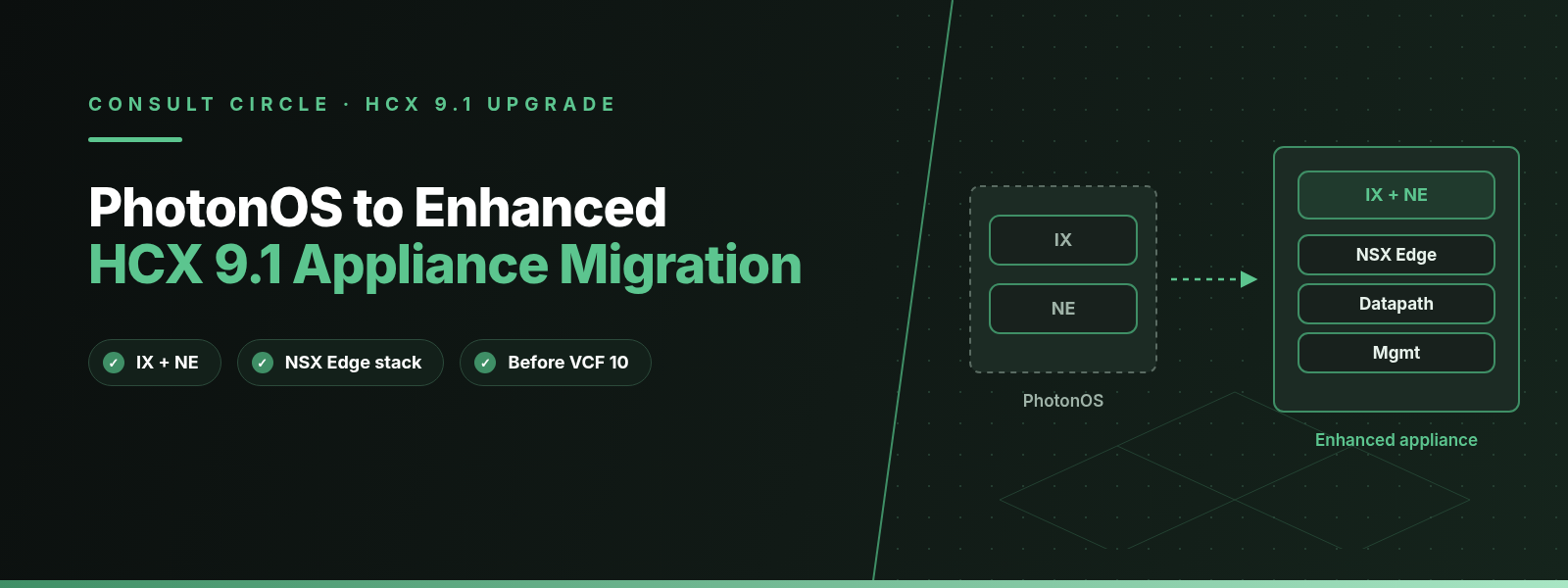
To move an existing VMware HCX service mesh from the PhotonOS appliances to the enhanced NSX Edge based appliances in HCX 9.1 (VCF Operations HCX 9.1), you upgrade the HCX Manager at both sites, then run the service mesh migration, which creates a new enhanced mesh, moves the existing network extensions onto it and removes the old mesh. Broadcom deprecated the self-managed PhotonOS appliances in VCF 9.1.0 and is targeting their removal in VCF 10.0.0, so every mesh that will still be running at that upgrade has to make this move first.
This is the runbook we use for that change. Broadcom documents the workflow, its restrictions and some downtime behaviour, but not timings, rollback or validation. Those parts come from our own migration practice and are labelled as such.
Key points
- Upgrading to HCX 9.1 does not convert existing meshes. Legacy IX and NE appliances keep the PhotonOS architecture until you migrate them; only new meshes are enhanced by default.
- The 9.1 service mesh migration wizard creates a new enhanced mesh, migrates the existing network extensions and removes the existing mesh. HCX Manager must be updated at both the local and remote sites first.
- Individual extensions can also be moved with the Migrate Network Extensions action, at appliance level or network level, with what Broadcom calls "minimal downtime".
- Broadcom documents moves from legacy to enhanced and between enhanced appliances only. Plan as if there is no way back to PhotonOS.
- After the move you get WAN optimization (enhanced meshes only), standard IPsec between enhanced IX and NE, HCX ports on the DFW exclusion list and up to 128 extensions per appliance vNIC.
What changes when a service mesh moves to the enhanced appliances?
An HCX service mesh deploys two kinds of data plane appliance in pairs, one at each site. The Interconnect appliance (HCX-IX, shown in the UI as HCX-WAN-IX) carries migration traffic. The Network Extension appliance (HCX-NE, shown as HCX-NET-EXT) bridges Layer 2 networks between the sites so that migrated VMs keep their IP addresses. Before 9.1 both ran on a self-managed PhotonOS build with HCX's own network stack.
HCX 9.1 rebuilds both appliances on the NSX Edge stack. Broadcom's release notes give two reasons: the NSX Edge stack performs better, and Broadcom no longer wants to maintain two network stacks that do the same job. Every service mesh you create on 9.1 uses the enhanced architecture automatically. Existing appliances from earlier versions keep the legacy architecture unless you migrate them.
What stays the same
The things your migration team works with every day do not change. Site pairing, compute profiles, network profiles, the migration types and the network extension model all carry on as before. Extended networks are still bridged by an NE pair at each site; what changes is the appliance underneath. The HCX Manager is upgraded separately from the appliances, as it always has been. If you are new to how extensions behave at cutover, our guide to HCX Network Extension, MON, MTU and cutover covers the mechanics this runbook depends on.
| Area | Legacy (PhotonOS) | Enhanced (9.1) |
|---|---|---|
| Appliance base | Self-managed PhotonOS | NSX Edge stack |
| Status in 9.1 | Deprecated, removal targeted for VCF 10.0.0 | Default for all new meshes |
| IX to NE traffic | HCX's own stack | Standard IPsec |
| WAN optimization | Not available | Embedded in the mesh |
| Networks per NE before scale-out | More than 8 needs another appliance | More than 7 may need another appliance |
| Extensions per vNIC | Not documented | Up to 128 in multi-extension mode |
| In-Service NE upgrade | New management and uplink IP per appliance | Uplink IP reused; management and Intrasite Control IP needed |
Table 1. Legacy and enhanced HCX appliances compared, from the VCF 9.1 release notes and the HCX 9.1 user guide.
One row in that table catches people out. Broadcom's Network Extension requirements say that with enhanced appliances, extending more than 7 networks might need additional NE appliances, against more than 8 for the standard appliance. The same page says enhanced appliances can run multiple extensions per vNIC, with one vNIC carrying as many as 128 extensions. Check which mode your target appliances will use before you assume an NE pair that held eight networks on PhotonOS will take all eight on the enhanced side. Our HCX sizing guide covers NE scale-out in more detail.
128
Extensions on one enhanced NE vNIC
7
Networks per enhanced NE before you may need another
4
NE appliances in one HA group
150 Mbps
vMotion and RAV minimum with WAN optimization
How does the HCX 9.1 service mesh migration workflow work?
Broadcom uses a few names for this. The VCF 9.1 release notes call it the "Migrating Network Extensions workflow". The HCX 9.1 user guide describes a service mesh migration started from the Interconnect UI, and Broadcom KB 449280 refers to a "Migrate Service Mesh" operation with a "Run Checks" step. In practice there are two routes, and they suit different situations.
Route 1: migrate the whole service mesh
The HCX 9.1 "About the Service Mesh" page says the migration wizard "creates a new, enhanced service mesh, migrates the existing network extensions, and removes the existing service mesh." The option sits in the Interconnect UI, and you can also reach it from the light bulb icon on the pane that lists meshes eligible for migration. The stated prerequisite is that HCX Manager at both the local and the remote site is updated to the latest VCF Operations HCX version.
KB 449280 adds a detail about eligibility. When the checks reject a mesh, the error reads "Only service meshes with photon backing appliances are applicable for transition". So the wizard only accepts meshes that still run PhotonOS appliances, which is what you would expect.
Route 2: move extensions with Migrate Network Extensions
The "Migrating Network Extensions" page in the HCX 9.1 user guide covers moving existing extensions from one pair of HCX-NET-EXT appliances to another "with minimal downtime". Broadcom names two uses: adopting enhanced service meshes by moving from legacy to enhanced appliances, and load balancing between enhanced appliances. You can work at two levels.
- At appliance level, go to Interconnect, click View Appliances, select the appliance, open the Migrate Network Extensions tab, choose the target service mesh and target extension appliance, and click Transfer. You can move every extension on that appliance or pick some.
- At network level, go to Network Extension, select the network, click Actions, choose Migrate Network Extensions, pick the target service mesh and extension appliance, and click Transfer.
Two restrictions apply. The source and target appliances must belong to the same network container, and the target appliance must have spare extension capacity. Appliances without capacity do not appear in the target list, so if your new NE is missing from the drop-down, check its capacity before anything else. The separate "Manage Service Mesh Appliances" page lists Migrate Network Extensions as an appliance action for VCF Operations HCX 9.1 and later, and starts its procedure from Sites rather than Interconnect. Use whichever matches your UI build.
| Route | What it moves | Best for | Documented by Broadcom |
|---|---|---|---|
| Migrate service mesh wizard | Whole mesh: new enhanced mesh, all extensions, old mesh removed | Small meshes, quiet weekends | Purpose and prerequisite; no step list or timings |
| Migrate Network Extensions, appliance level | All or selected extensions on one NE | Moving one NE pair per change | Steps and restrictions |
| Migrate Network Extensions, network level | One extended network | Critical networks, pilots | Steps and restrictions |
Table 2. The two routes to the enhanced appliances and what Broadcom documents for each.
Moving live meshes to HCX 9.1?
We plan and run the PhotonOS to enhanced appliance move between your migration waves
Consult Circle assesses your current service meshes, sizes the enhanced appliances, schedules the extension moves around application owners and runs the change with you.
Talk to our HCX teamWhat are the prerequisites before you migrate a service mesh?
Broadcom states one hard prerequisite for the mesh wizard: HCX Manager must be updated at both sites. The Migrating Network Extensions page also says the environment must be updated to the latest release. Everything else on the list below is our planning practice, built from the restrictions Broadcom does document and from what goes wrong on real changes.
HCX Manager versions at both ends
Upgrade the HCX Manager at both the source and the destination to the same 9.1 build before you plan any appliance move. KB 449280 describes what happens when you do this in the wrong order. If the target HCX Manager is upgraded to 9.1.0, a service mesh is created while the source is still on 9.0.x, and the source is upgraded afterwards, the Run Checks step of Migrate Service Mesh fails on the target site with "not applicable for transition". Broadcom's workaround is to resync the service mesh from the Service Mesh UI and run the migration again, with a permanent fix promised in a later 9.1 release.
Capacity and IP addresses
The wizard deploys a new enhanced mesh before it removes the old one, so for a while both exist. We found no Broadcom comparison of enhanced and PhotonOS appliance resource needs, so check cluster headroom at both sites. In our experience the destination cluster runs short first, because it is filling up with migrated VMs.
IP addresses need the same attention. Broadcom's In-Service upgrade page says enhanced NE appliances reuse their uplink IPs during an In-Service upgrade but need a management IP and an Intrasite Control IP each. NE HA standby appliances take their addresses from the network profile IP pool. Broadcom does not state how many addresses the mesh migration wizard consumes, so our practice is to make sure each network profile pool has enough free addresses for a full second set of appliances before the change.
Firewalls and IPsec
Traffic between enhanced IX and NE instances uses standard IPsec, and HCX ports are now on the NSX Distributed Firewall exclusion list. The DFW exclusion helps inside an NSX environment. Perimeter and inter-site firewalls are a different matter: they still need rules for the enhanced appliances. Broadcom points to its Ports and Protocols portal for the full list rather than printing it in the 9.1 guide, so take the enhanced appliance flows from there and from the connection rules the service mesh wizard shows you. Our HCX port requirements guide explains each flow.
Our recommendation is to create a small test service mesh between the upgraded managers before the real change. If the enhanced appliances deploy and their tunnels come up through your firewalls, you have proved the network path without touching production extensions.
- HCX Manager at source and destination on the same 9.1 build
- No HCX 4.x appliances left in front of a vCenter you plan to take to 9.1
- Service Mesh Diagnostics clean on the legacy mesh
- Cluster headroom for a second set of IX and NE appliances at both sites
- Free addresses in the management and uplink pools, plus Intrasite Control if you use it
- Firewall rules for the enhanced appliances checked against the Ports and Protocols portal
- Test enhanced mesh deployed and tunnels up
- Extension inventory exported: network, NE appliance, MON state, gateway owner
How do you plan around live Network Extension traffic?
The IX appliance only matters while a migration is running. The NE appliance matters all the time, because every VM you have already moved onto an extended network sends its north-south traffic, and often its east-west traffic, through that NE pair until you cut the network over. Moving an extension is a network change for every VM on that segment at both sites.
Broadcom gives some numbers for related operations, and they set expectations. A Standard redeploy of an IX or NE appliance reuses the same IP, disconnects the appliance and rebuilds tunnels, which Broadcom says "can take up to a minute or more". For an In-Service upgrade of NE appliances Broadcom says the switchover "can happen within a few seconds or less", while Standard mode needs "30 seconds or more" to restore data traffic. On enhanced meshes, the In-Service process places the new appliance in HA with the old one, fails over, breaks the HA pair and deletes the old appliance.
Broadcom does not publish an outage figure for the mesh migration wizard or for Migrate Network Extensions beyond "minimal downtime". Our recommendation is to book each change as if every extension being moved will drop traffic for up to a minute, and to tell application owners that, then measure what you actually see on the pilot network and adjust.
| Operation | Broadcom's stated impact | Source |
|---|---|---|
| Standard redeploy, IX or NE | Tunnels rebuilt, up to a minute or more | Manage Service Mesh Appliances |
| In-Service NE upgrade | A few seconds or less | In-Service Upgrade page |
| Standard NE upgrade | 30 seconds or more | In-Service Upgrade page |
| Migrate Network Extensions | "Minimal downtime", no figure | Migrating Network Extensions |
| Migrate service mesh wizard | Not documented | None found |
Table 3. Documented disruption for HCX appliance operations. Treat the last two rows as unknown until you have measured them.
Mobility Optimized Networking and HA groups
Two features change the risk. If an extension uses Mobility Optimized Networking (MON), Broadcom's HA page notes that policy-routed MON traffic recovers more slowly after a failover than other traffic, because the MON service has to rediscover the next hop. We expect the same pattern when an extension moves between appliances, though Broadcom does not say so directly. Test a MON-enabled network on its own before you move a batch of them.
NE High Availability groups use four appliances, two at each site, and In-Service upgrade is not available for HA groups. Broadcom also warns that a Resync or Edit on a mesh with HA groups reconfigures or redeploys every NE appliance in the group. Do not resync a mesh with HA groups in the middle of the business day to clear a warning, even though KB 449280 recommends a resync as a workaround.
Do
- Move one mesh per change window
- Pilot one low-risk extended network first
- Schedule between migration waves, with no IX jobs queued
- Agree a traffic test with each application owner in advance
- Export the extension list before you start
Avoid
- Running the mesh wizard while Bulk or RAV jobs are in flight
- Moving every MON network in one batch
- Resyncing HA meshes during business hours
- Upgrading the destination manager weeks ahead of the source
- Assuming the new NE takes the same number of networks
Which order should you migrate IX and NE appliances in?
The mesh wizard handles the whole mesh, IX and NE together. If you take the batch route, the order is up to you, and here is how we sequence it.
The IX carries no standing traffic between waves, so with no migration queued, replacing it costs nothing users can see. Broadcom's appliance page notes that redeploying an IX that is serving migrations needs the Force option, which tells you HCX expects the IX to be idle for appliance work. So do the IX side first, in a gap between waves, and prove a test migration over the new enhanced IX before you touch any extension.
The NE side comes next, one appliance or a handful of networks at a time. Start with a network that has few VMs and a forgiving owner, then the bulk of the estate, then the critical and MON-enabled networks last, each in its own window.
Across a programme, take one site pair and one mesh at a time. Our 70-point HCX migration checklist has the wave planning checks that sit around this.
How to migrate a legacy HCX service mesh: step by step
This is the runbook we use for a single mesh. Where a step uses a Broadcom-documented UI path we give it; where Broadcom does not document the screen, we describe the intent and leave the clicks to your build.
Freeze migrations on the mesh
Agree a window between migration waves. Confirm that no Bulk, RAV, vMotion or Cold jobs are queued or running on this mesh. This is our practice; Broadcom's appliance guidance points the same way, since an IX serving migrations needs Force to redeploy.
Record the current state
Export the list of extended networks, the NE appliance each sits on, MON status, HA group membership and the gateway at each site. Take screenshots of the appliance and extension views. You will compare against this list afterwards.
Run Service Mesh Diagnostics
The VMware Cloud Foundation blog's HCX 9.1 series uses Interconnect, Service Mesh, More, Run Diagnostics on the source HCX Manager and says not to proceed if any probe fails. Run Transport Analytics on the uplink as well, so you have a before figure for bandwidth, latency and loss.
Start the migration
Either launch the service mesh migration from the Interconnect UI (or the light bulb icon on the list of eligible meshes), or, for the batch route, make sure your new enhanced mesh is deployed and healthy. If Run Checks fails with "not applicable for transition" after a mixed-version upgrade, follow KB 449280: resync the mesh, then retry.
Prove the new IX
Before moving any extension, run one test migration of a non-production VM across the enhanced mesh. A test VM that moves cleanly proves the new tunnels and the firewall path.
Transfer the pilot extension
Go to Network Extension, select the pilot network, click Actions, choose Migrate Network Extensions, select the target service mesh and extension appliance, and click Transfer. Run the validation tests below while the owner watches.
Transfer the remaining extensions in batches
Use Interconnect, View Appliances, select the source appliance, open the Migrate Network Extensions tab, pick the target and click Transfer. Keep MON networks and critical applications for the last batch.
Retire the legacy mesh
The wizard removes the old mesh itself. On the batch route, delete the legacy mesh only after every extension has moved and the validation results are signed off.
What is the rollback plan if an extension misbehaves?
Because Broadcom documents no route back to PhotonOS, rollback here means recovering service quickly. You cannot rely on reverting the architecture. These are the options we plan for, in order of preference, and none of them comes from a Broadcom procedure.
First, on the batch route the legacy mesh exists until you delete it, so keep it until the last extension has moved and been validated. Its supported list suggests you cannot transfer an extension back onto it, but it remains a known-good reference while you investigate.
Second, if the problem is on the new NE, an enhanced-to-enhanced move is supported. If you have a second enhanced NE in the mesh with capacity, moving the extension there tells you whether the fault is the appliance or the network.
Third, if the extended network has few VMs left at the source, you can finish migrating them and cut the network over to the destination gateway, which removes the extension altogether. Agree that fallback with the network team in advance.
Finally, collect logs before you change anything else. Our guide to which HCX log to read covers where to look, and the 9.1 VCF Operations HCX Management Pack can collect log bundles.
How do you validate the enhanced mesh after the move?
A mesh that shows green can still drop traffic for one application. We run these tests after every transfer batch and again after the legacy mesh is removed.
| Test | How | Pass condition |
|---|---|---|
| Tunnel health | Appliance view and Run Diagnostics | Tunnels up, no failed probes |
| Extension inventory | Compare with the exported list | Every network on the planned NE |
| Gateway reachability | Ping the source gateway from a migrated VM | Replies, no new loss |
| Cross-site east-west | VM to VM across the extension | Application ports open |
| Large packets | Ping with do-not-fragment at your target size | Same result as before the move |
| MON routing | Traceroute from a MON-enabled VM | Exits via the expected router |
| Test migration | Small Bulk or RAV job | Completes, throughput recorded |
Table 4. Our post-migration validation tests. Pass conditions compare against the baseline you recorded before the change.
Record the Transport Analytics figures again and compare them with the before figures. A large drop in throughput usually points to MTU or an uplink profile setting on the new appliances, which is easier to catch now than at the start of the next wave.
What do you gain from enhanced appliances?
Some 9.1 features only work on enhanced meshes.
Migration speed
WAN optimization returns
Embedded in the Interconnect service mesh and exclusive to enhanced meshes. It does not apply to OSAM or HCX Assisted vMotion. The VMware blog says it lowers the vMotion and RAV bandwidth minimum to 150 Mbps from 250 Mbps.
Security review
Standard IPsec
Enhanced IX and NE instances talk to each other over standard IPsec, which network and security teams already know how to inspect and approve.
NSX operations
DFW exclusion list
HCX ports are on the NSX Distributed Firewall exclusion list, so an application DFW rule is less likely to block appliance traffic by accident.
Scale
Multi-extension vNICs
One enhanced NE vNIC can carry as many as 128 extensions, and extensions can be load balanced between enhanced appliances with Migrate Network Extensions.
WAN optimization is the one most teams notice. If your source sites sit on older links, migrations over an enhanced mesh may become possible where the 250 Mbps minimum ruled them out before. How much it helps depends on how well your data compresses and deduplicates, so measure it on a pilot wave before you build a schedule on it. Our RAV guide explains where bandwidth limits bite in a live migration.
Should you migrate now or wait?
PhotonOS appliances are still supported in 9.1, so you have a choice about timing. The diagram below is the decision we walk clients through.
Our view is that most estates should migrate early in the 9.1 lifecycle. Programmes often leave Network Extension in place for months while application owners test, so today's mesh can easily still be carrying traffic when VCF 10 arrives. The exception is a mesh that will be torn down well before then and has no use for WAN optimization: retire it on schedule.
If you are also planning a platform upgrade, our guide to upgrading VCF 5.2 to VCF 9.1 covers where HCX sits in the upgrade order.
How long do you have before VCF 10?
Broadcom has not published a date for VCF 10.0.0. What it has said is that removal of PhotonOS appliance support is targeted for that release. The timeline below shows what is fixed and what is not.
Our recommendation is to have every long-lived mesh on enhanced appliances before you start planning that upgrade, so the HCX move is not on its critical path.
VMware HCX consultancy
Want a second pair of hands on the service mesh migration?
We review your meshes, write the change plan, run the pilot transfer and stay on the bridge while your production extensions move to the enhanced appliances.
Book an HCX mesh reviewFrequently Asked Questions about migrating HCX service meshes to enhanced appliances
Does upgrading to HCX 9.1 convert my existing service meshes?
No. Existing IX and NE appliances keep the legacy PhotonOS architecture after the upgrade. Only service meshes created on 9.1 use the enhanced NSX Edge based architecture automatically, and existing meshes move only when you run the migration workflow.
Are PhotonOS HCX appliances still supported in HCX 9.1?
Yes. They are deprecated as of VCF 9.1.0 and still work, but Broadcom is targeting full removal of self-managed PhotonOS appliance support in VCF 10.0.0, so any mesh that will exist at that upgrade must move first.
What does the HCX service mesh migration wizard do?
It creates a new enhanced service mesh, migrates the existing network extensions to it and removes the existing service mesh. Broadcom requires HCX Manager to be updated at both the local and remote sites before you can run it.
Is there downtime when network extensions move to enhanced appliances?
Some, but Broadcom does not give a figure. It describes Migrate Network Extensions as moving extensions "with minimal downtime", so we plan for up to a minute of disruption per extension and measure the real figure on a pilot network.
Can I move an extension back to a PhotonOS appliance after migrating?
Not according to anything Broadcom documents. Extension migration is supported from legacy to upgraded systems and between upgraded systems, so treat the move as one-way and keep the legacy mesh until validation is complete.
Why does Migrate Service Mesh fail with "not applicable for transition"?
This is a known issue in Broadcom KB 449280. It happens when the target HCX Manager was upgraded to 9.1.0 and a mesh created before the source was upgraded from 9.0.x; the workaround is to resync the service mesh from the Service Mesh UI and retry.
Is WAN optimization available on legacy HCX service meshes?
No. WAN optimization in HCX 9.1 is exclusive to enhanced service meshes and is not available for OS Assisted Migration or HCX Assisted vMotion, which is a practical reason to migrate meshes that serve slow links.
Can enhanced NE appliances carry more extensions than legacy ones?
Yes, in multi-extension mode. One enhanced appliance vNIC can carry as many as 128 extensions, although Broadcom notes that in single-extension mode you may need another NE appliance once you extend more than 7 networks.
Sources
- Broadcom: VCF 9.1.0.0 release notes, What's new in VCF Operations (Workload Mobility)
- Broadcom TechDocs: Migrating Network Extensions (HCX 9.1)
- Broadcom TechDocs: About the Service Mesh (HCX 9.1)
- Broadcom TechDocs: Manage Service Mesh Appliances (HCX 9.1)
- Broadcom TechDocs: Update and Synchronize the Service Mesh (HCX 9.1)
- Broadcom TechDocs: In-Service Upgrade for Network Extension Appliances (HCX 9.1)
- Broadcom TechDocs: Understanding Network Extension High Availability (HCX 9.1)
- Broadcom TechDocs: Requirements for Network Extension (HCX 9.1)
- Broadcom KB 449280: HCX "Migrate Service Mesh" fails when source is 9.0.x and target is 9.1.0
- Broadcom KB 450437: VMware HCX compatibility and upgrade requirements for VCF 9.1
- VMware Cloud Foundation blog: Workload Mobility with VCF Operations HCX 9.1, Part 2: HCX Service Mesh
- VMware Cloud Foundation blog: Workload Mobility with VCF Operations HCX 9.1, Part 3: Extending Networks and Migrating Workloads
Written by the Consult Circle VMware HCX migration team. Last reviewed 3 November 2026.